· Petr Korab · Text Cleaning · 6 min read
Washer: No-Code Online Tool for Text Data Cleaning
Cleaning text data calls for specific programming knowledge. Washer makes it simple for both developers and non-technical users
Introduction
Have you ever cleaned datasets? There’s a lot to remove before one can land on text analytics. Numbers, punctuation, and special characters, stopwords in various languages, blank spaces, and even emojis from social media conversations are typically removed because they don’t carry as much meaning. Multiple forms of quotation marks (‟„ ′ ‵ ‘ ’ ‛ “ ” ‶ ″ “), hyphens (– — -), dots (. •), and other characters in social media discussions, site reviews, or customer complaints datasets make this step a non-routine task. Customers of international companies often comment on products in multiple languages, making it necessary to clean stopwords in more than one language at the same time.
Text data should be cleaned in sequence so that the previous cleaning operation does not cause a bias in the latter ones. For example, removing punctuation (‘) before stopwords (don’t) splits some of the stopwords into two tokens (don and t), and the stopwords cleaning becomes less efficient, generating new tokens to remove.
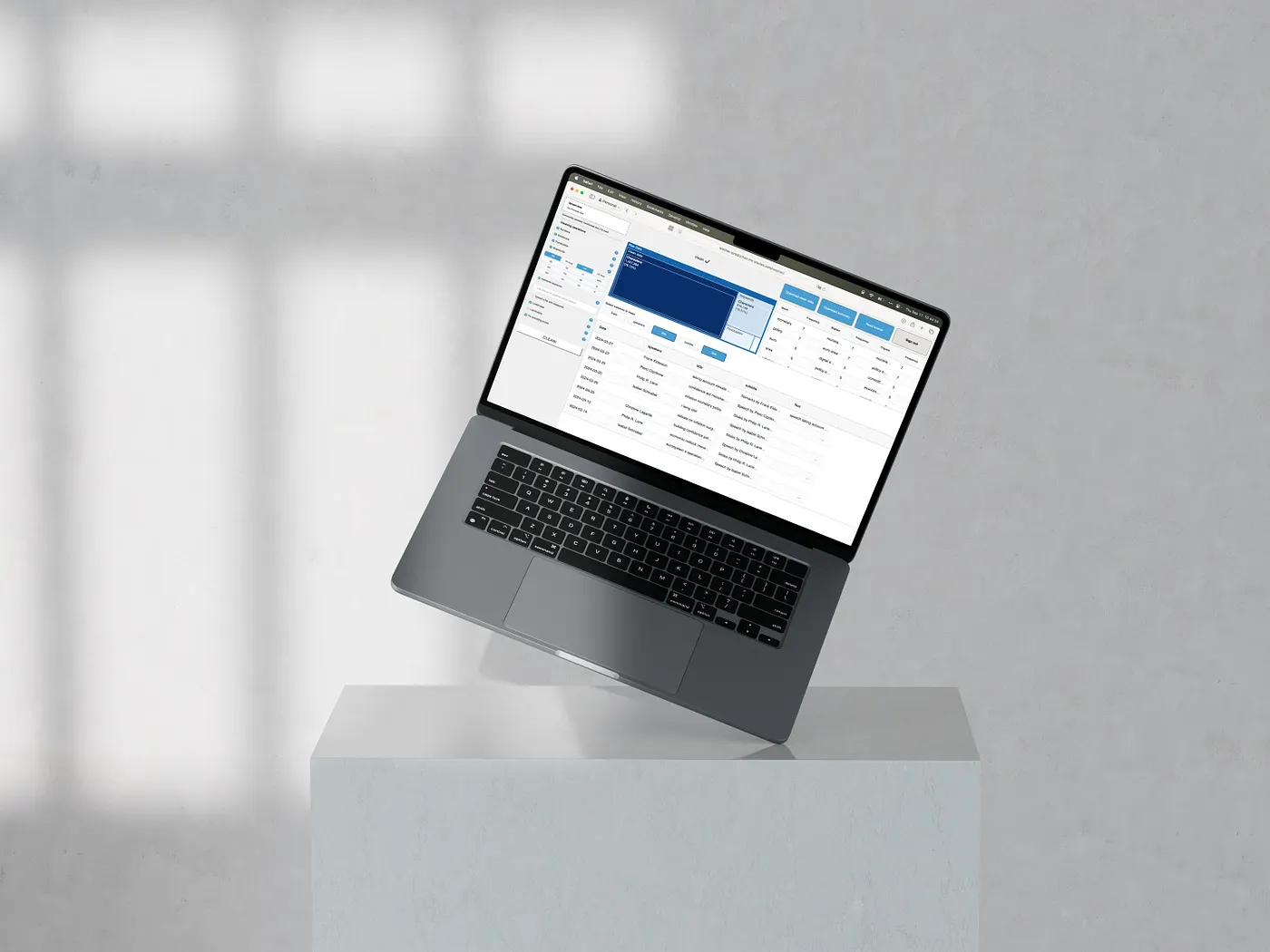
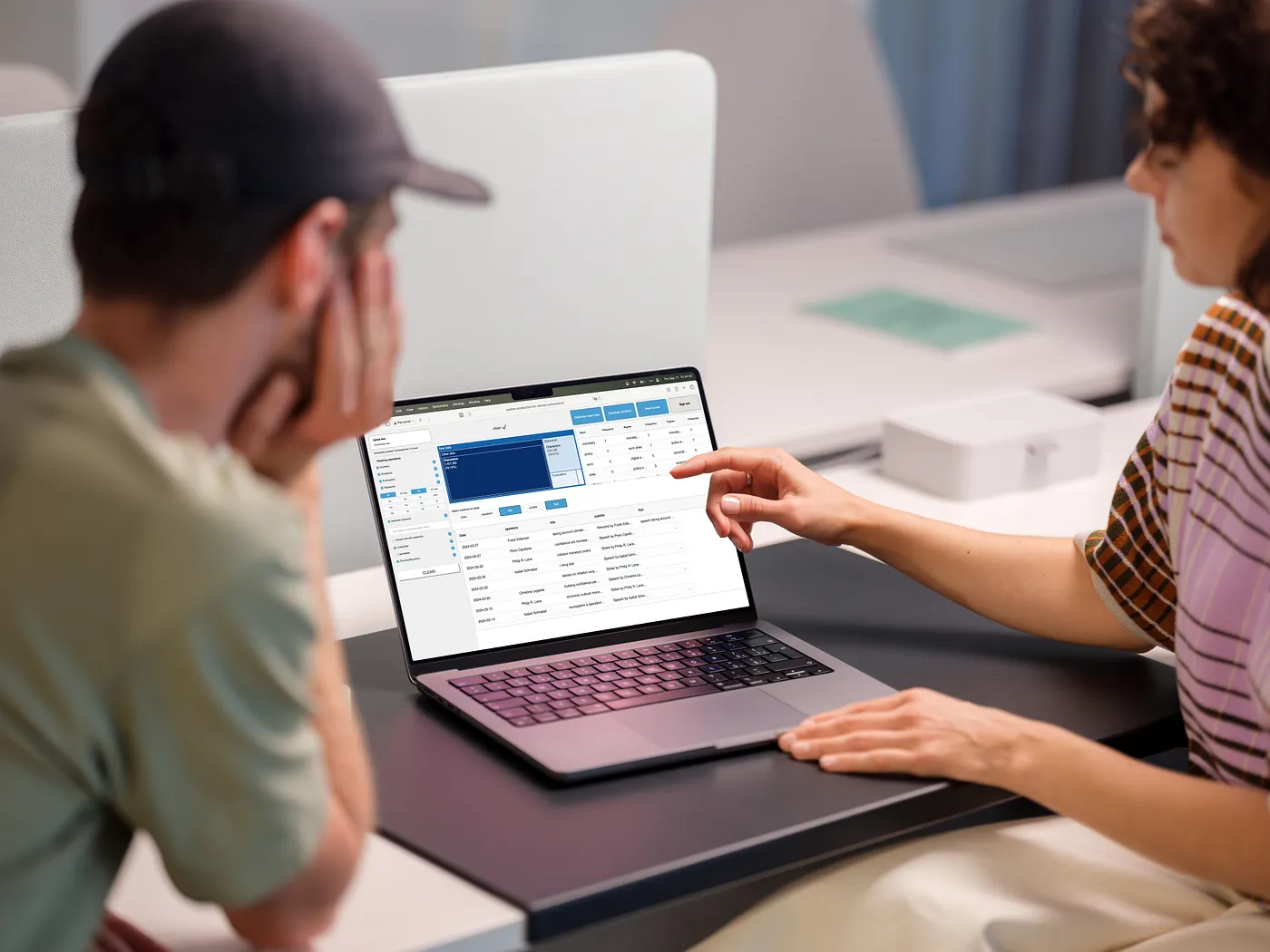
Washer simplifies standard text cleaning operations for students, BI and Data analysts, and non-technical users such as e-shop owners who work with text datasets. In a no-code studio, we upload data, review the cleaning operations, and swiftly download clean data without worrying about the technical aspects. In this article, we’ll look deeper at how to preprocess text data without programming experience, in a no-code way.
Cleaning text data in 5 steps
Let’s now clean the Amazon product reviews with the Washer studio.
- Upload data Let’s first upload a CSV, XLSX, TXT, or Parquet file from the local PC. We’ll use the 5000-row sample of the Amazon Dog Food Reviews dataset. Washer cleans both tabular datasets (Instagram comments, product reviews, article headlines, public speech transcripts) and corpus-type data (books, large articles, etc).
Upload a CSV, XLSX, or Parquet file for tabular data (multiple rows, text on each line), Use the TXT format for books and longer articles, where you need to clean a single-line corpus. Press enter or click to view image in full size
Image 2. Data upload
Upload is limited to 20 MB for all formats. Contact the TMS support for larger datasets.
- Select columns and cleaning options Press enter or click to view image in full size
Image 3. Columns and cleaning options selection
Let’s select one or more columns to clean in the data editor, along with the cleaning options. Blank spaces are cleaned automatically after data upload. These are:
Fix encoding errors: this option fixes encoding (or “mojibake”) errors that appear when text is decoded using the wrong character encoding (it is written, e.g., in UTF-8 but read and saved in Shift-JIS). Since the byte sequences don’t match the expected encoding rules, the text gets misinterpreted, producing strange symbols (é, 譁, ..). Numbers: removes digits (0–9). Emojis: removes emojis from the Unicode list. Punctuation: removes punctuation and special characters (complete character list is in the docs). Stopwords: cleans stopwords from 13 languages. EN large and DE large options remove a larger list of stopwords that are common in the general language. You can find all the stopword lists here. Additional stopwords: type words (or other strings), separated by spaces that will be removed from the text. This option removes the tokens from the text if they are separated by spaces from other text. It is case-insensitive and removes all lowercased and upper-cased word variants. If the user, e.g., adds “Eye”, it also removes “eye” and “EYE”. Similarly, “Eye” also removes “eye“ and “EYE”, etc. Does your text include lots of unnecessary brand-related terms (“Ray-Ban”, “sunglasses”, “eye”)? 👉 Type them in the additional stopwords box.
Upload a file with stopwords: Upload an XLSX or CSV file with stopwords. The reader expects that each stopword is on a separate line in the first column. Stopwords here are single words (not bigrams-two consecutive words or trigrams-three consecutive words). ✅ “apple”, “weather”, “book”
❌ “bought apple”, “nice weather”, “this book is great”
This option removes the tokens from the text if they are separated by spaces from other text. It is case-insensitive and removes all lowercased and upper-cased word variants. If the user, e.g., adds “cat”, it also removes “Cat” and “CAT”. Similarly, “Cat” also removes “cat“ and “CAT”, etc.
Lowercase: lowercases data. E.g.: “This Coke is amazing” → “this coke is amazing”. Lemmatize: groups words into a single form (the lemma), keeping the word root information and semantics. Press enter or click to view image in full size
Image 4. Lemmatization — Raw text on the left, lemmatized on the right Sequential cleaning ensures that the maximum data is removed, causing minimum bias for the next steps. Each update runs preprocessing from scratch in a sequence of operations the user selects: (1) encoding errors, (2) numbers, (3) emoticons, (4) stopwords, (5) additional stopwords, (6) uploaded stopwords, (7) punctuation, (8) lowercasing, (9) lemmatization.
👉 When all options are selected, click the CLEAN! button.
- Check remaining words and confirm removed data The progress bar at the top left displays the cleaning progress interactively. Once complete, the word frequencies and cleaning summary display cleaning statistics.
Press enter or click to view image in full size
Image 5. Word frequencies and cleaning summary editors
The word frequencies editor displays frequencies of words, bigrams (two consecutive words), and trigrams (three consecutive words) in the clean data. If the data still contains unnecessary words, copy and paste them into the additional stopwords box and do the cleaning again. Before the clean data download, let´s check the cleaning summary with shares of removed characters for each cleaning option. The cleaning summary shows how much data we lost during cleaning. In Image 6, we can see that over 33% of the data was removed during the cleaning. Most of the removed characters (16.51 %) were English stopwords. 4. Download clean data Press enter or click to view image in full size
Image 6. Download clean data and cleaning summary
Finally, let’s:
Download clean data in the format of the uploaded file. If the clean file were, e.g., “amazon dog reviews.csv”, the downloaded file would be suffixed with _clean as “amazon dog reviews_clean.csv”. The exported file includes the original file with clean data in the selected column(s). 2. Typing the Download summary button generates an XLSX with the summary of all cleaning operations in 4 sheets:
Cleaning summary: review of applied cleaning options (share of removed data), list of cleaned columns, and selected languages for stopwords and lemmatization. Stopwords: list of stopwords used for stopwords cleaning. Additional stopwords: list of removed additional stopwords. Uploaded stopwords: list of cleaned uploaded stopwords. More details on technical aspects are in the Washer docs.